Welcome to TextNow Wireless! 🎊
When you activate your TextNow SIM card, your service will most likely be up and running once you go through the activation flow in the app! In some cases, you may need to set your APN settings manually to ensure that your data service works as expected so we'll take you through the steps to set that up here.
If you see service bars at the top of your phone screen but your data isn't allowing you to connect to the internet, follow the instructions for your SIM and device type by clicking the drop-down sections below to set up the TextNow APN manually.
Android Activation Steps
If you're using an Android device and your TextNow SIM card is black, make sure you've gone through the activation flow in the app by clicking 'Activate your SIM card' in the menu drawer, or, follow the steps for your device at textnow.com/connect then continue with the steps below:
1. Go to your phone's Settings menu
2. Tap on Connections (it may also be called Networks or Networks & Internet)
3. Tap on Mobile Networks (it may also be called SIMs)
4. Select Access Point Names (you may need to scroll down and tap on Advanced then select Access Point Names)
5. At the top of the Screen, select Add (or +)
6. Under Name add TextNow
7. Under APN add textnow.static
8. Tap the 3 dots in the top right and select Save
9. Select the TextNow APN option
10. Go back to the Settings menu
11. Turn Airplane mode on and wait 10 seconds then turn it off again
12. Open the TextNow app and try sending a text or making a call to confirm service is working
12. Restart your device if you're still having trouble connecting
Android Step Walkthrough:
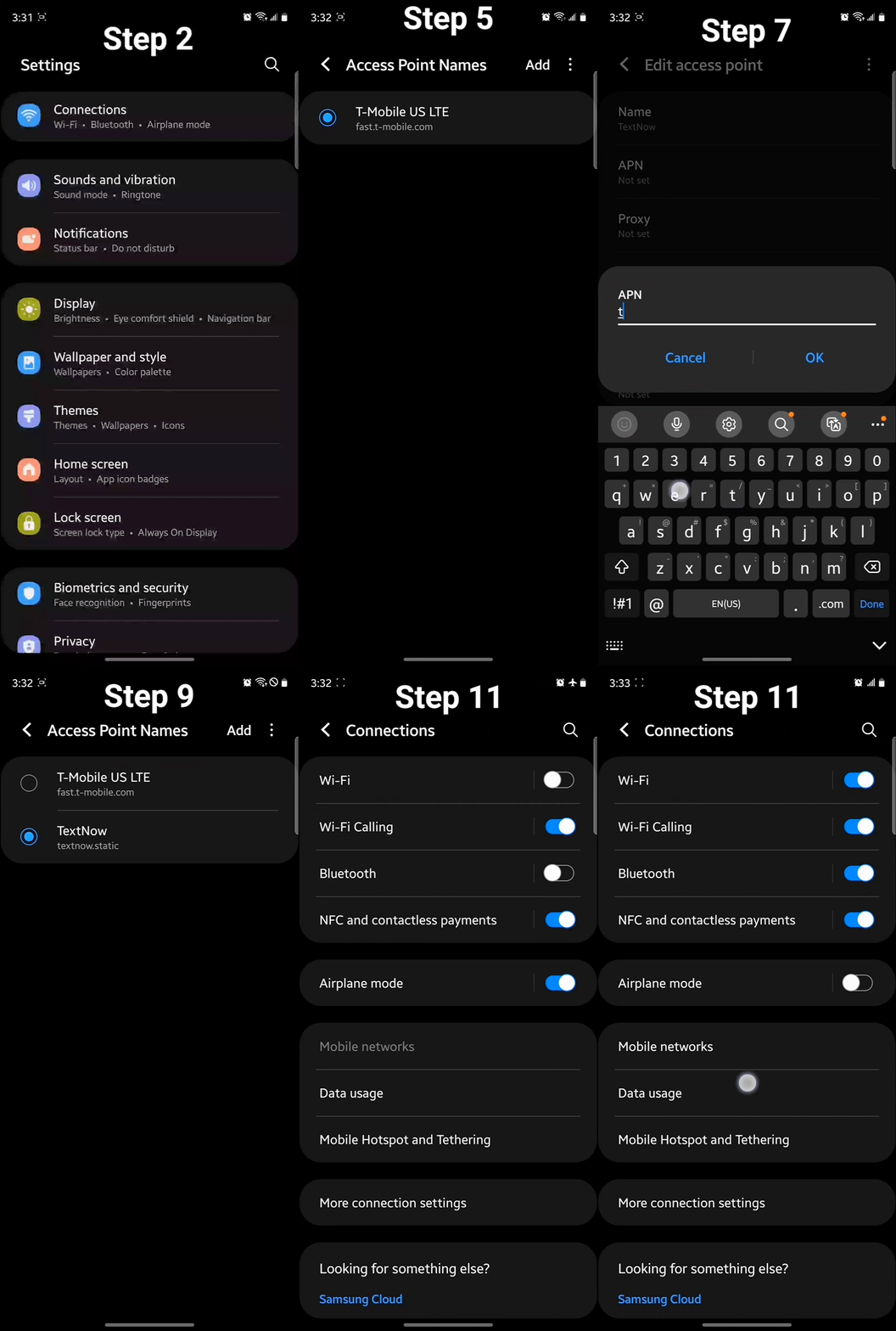
If your data is still not working after following the steps above, you may need to complete these additional steps:
Delete the current TextNow APN and re-add it with the details above and the information below in these additional fields on that same page.
- MCC: 314
- MNC: 730
- APN Protocol: IPv4/IPv6 (select both)
- Roaming APN Protocol (if applicable): IPv4/IPv6 (select both)
- MVNO Type: (leave this field blank)
- MVNO Value: (leave this field blank)
If your phone is running Android versions 9, 10, 11, or 12 you may also need to complete the steps in this article to activate your SIM.
What if I can't change the Access Point Name settings?
If you cannot update the Access Point Name settings either because the option is greyed out or does not appear at all, your device may be locked. This means you need to get it unlocked by the original carrier it was purchased from before you are able to activate your TextNow SIM. For more on locked devices, check out this article.
iPhone Setup
If you're using an iOS device you don't need to add any APN settings, just follow the activation steps in the app! If you have added any APN settings manually, try deleting them and activating your SIM again.
Contacting support
If you still need help or have a question that isn't answered in our Help Center, you can ask the TextNow Support Bot or chat with a member of our support team! Agents are available every day from 10 AM - 5:30 PM (Eastern), you can click on the purple chat bubble at the bottom of any Help Center page to get started.
PRO TIP: For troubleshooting issues with the app, it's a good idea to chat with us from a different device if you have one available so you can keep the chat conversation open while following the troubleshooting steps.